
Authentication Flow for Smartphones, SMS, and Telephone (Smartphone Version)

Authenticate via Smartphone Authentication
STEP1
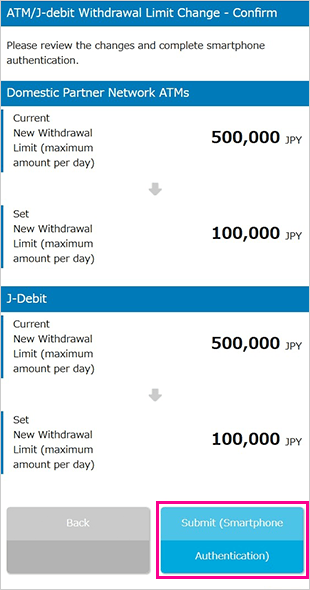
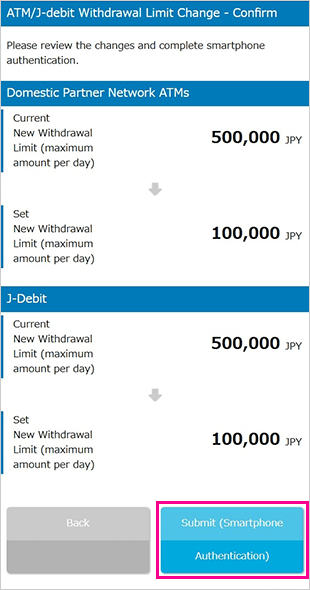
Please review the details of the transaction or procedure, then tap “Submit (Smartphone Authentication)”.
The screen shown is an example.
Actual screen displays may vary depending on the transaction or procedure; however, the authentication process remains the same.
STEP2
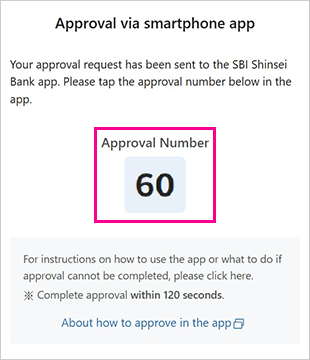
Please check the approval number displayed on the PowerDirect screen.
STEP3
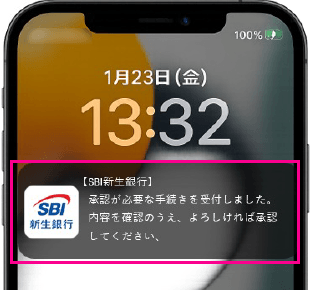
Please tap the push notification sent to the SBI Shinsei Bank App.
- The image below is an example of a push notification. Actual displays may vary by device.
- Push notifications are available in Japanese only.
STEP4
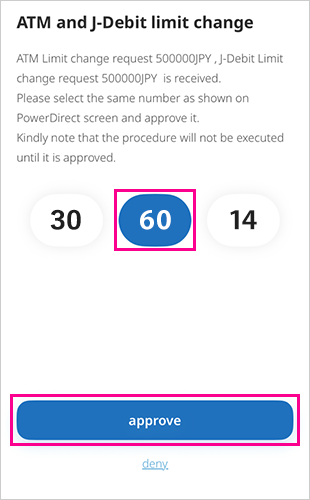
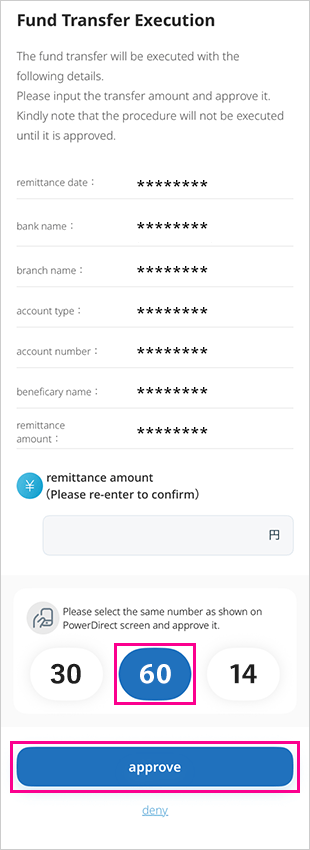
Please confirm that the transaction or procedure details are correct, then select the number that matches the approval number displayed on the PowerDirect screen.
For fund transfer transactions, you will also need to enter the transfer amount.
- The screen shown below is an example.
Actual screen displays may vary depending on the transaction or procedure you are using; however, the operation flow remains the same.
〈Example: Changing the ATM/J-Debit Withdrawal Limit〉
〈Example: Fund Transfer Transaction〉
STEP5
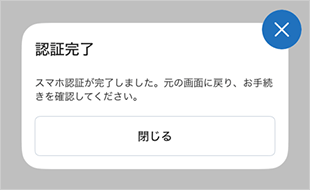
Tap “Close” on the approval completion screen, return to the PowerDirect screen, and review the transaction or procedure details.
- The approval completion screen is available in Japanese only.
STEP6
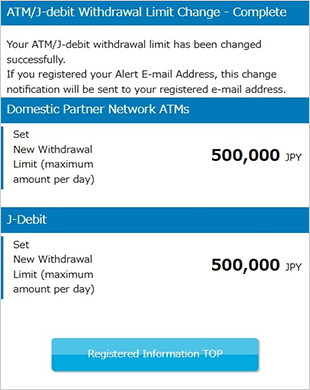
The transaction/ procedure completion screen will be displayed on PowerDirect. Please review the details.
- The screen shown below is an example.
Actual screen displays may vary depending on the transaction or procedure you are using; however, the operation flow remains the same.
Authenticate via SMS / Telephone
STEP1
The transaction/ procedure completion screen will be displayed on PowerDirect. Please review the details.
- The screen shown below is an example.
Actual screen displays may vary depending on the transaction or procedure you are using; however, the operation flow remains the same.
STEP2
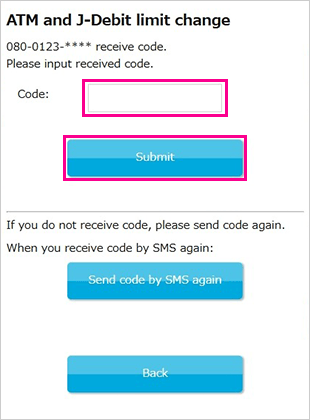
Please enter the code you received via SMS Authentication or Telephone Authentication, then tap “Submit.”
STEP3
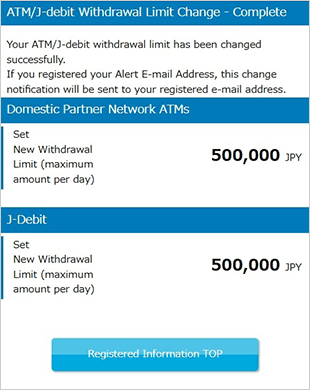
The transaction/ procedure completion screen will be displayed on PowerDirect. Please review the details.
- The screen shown below is an example.
Actual screen displays may vary depending on the transaction or procedure you are using; however, the operation flow remains the same.
 Close
Close